Selling in your Online Store
Add the theme block once; it renders bundle contents, savings and the mix-and-match picker.
Add the block
- In the admin go to Online Store → Themes and press Customize.
- Switch to a product template using the template picker at the top.
- In the left panel press Add block inside the product information section and choose Better Bundles under Apps.
- Drag it to where you want it, usually just above the Add to cart button. On themes that group the product details, such as Horizon, drag it into the Details group under the price; left below the product, a mix-and-match picker ends up out of sight of the button it unlocks. Save.
The block renders nothing on products that aren’t bundles, so it’s safe to add to every product template.
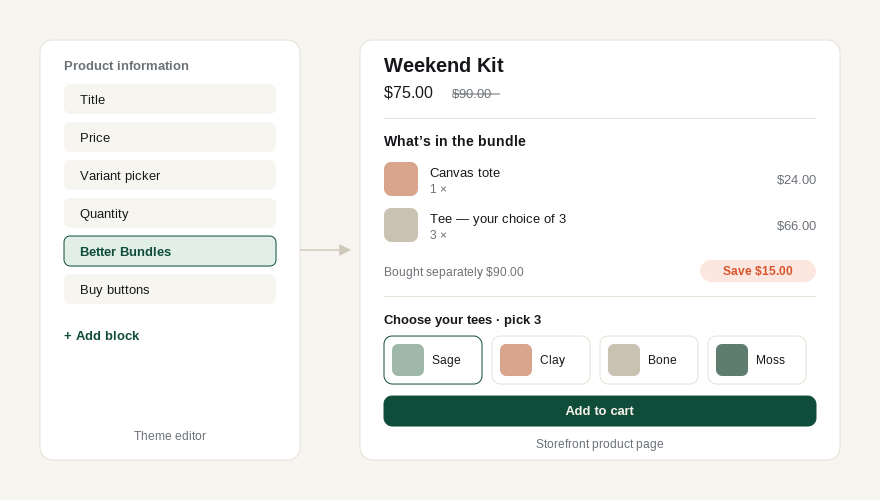
Block settings
| Setting | What it does |
|---|---|
| Heading | Title above the contents list. Default “What’s in the bundle”. |
| Show images | Thumbnail for each component and each mix-and-match choice. |
| Show prices | Each component’s and each mix-and-match choice’s regular price. |
| Show savings | “Bought separately” total and the saving at the bundle price. |
What the customer sees
In the cart and at checkout the bundle appears as a single line at the bundle price, with the components listed underneath it and a Bundle savings discount line showing what they saved. You can rename that line per bundle with the Savings label field in the bundle editor.
Headless or custom storefront? Bundle definitions are readable through the Storefront API without the theme block — see Headless storefronts.